INTERACTIVE SOLUTIONS
FOR Virtual and Distance Learning

Make online classes at home easier for your students with our interactive solutions for remote teaching.
- Teach from the classroom at the educational institution or from home;
- Provide dynamic and collaborative learning experiences;
- Involve the whole class with stimulating educational resources;
- Apply the advantages of technology for safe and immersive online teaching.
Find out how the Wingsys interactive online learning solution works.
How it works?
This solution for distance learning allows the teacher to teach his classes from the classroom or from his home, since all the equipment can be installed anywhere with internet access.
Through a set of technological equipment, students have access to online classes at home, in total security.
In this remote teaching model, teachers and students benefit from a more dynamic and interactive teaching-learning experience, in real time.
The teacher can interact with the class while watching and listening to each student, through a secondary screen, as well as all students see the teacher through the videoconference system.
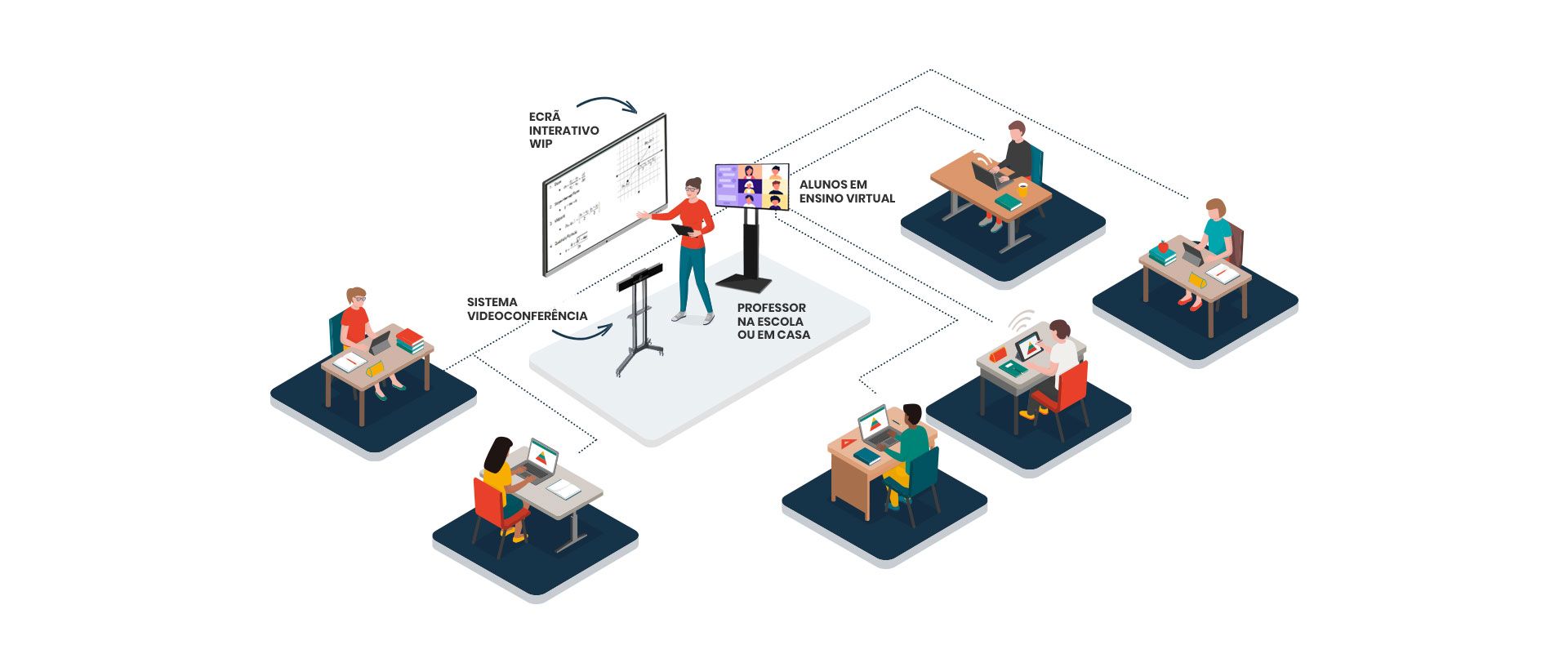
Wingsys Virtual Classroom
The current public health situation has created educational needs that led Wingsys - Interactive Technology to develop Wingsys Virtual Classroom, a remote and face-to-face interactive classroom solution that aims to "Connect Education":
• Empower schools with technological solutions necessary to implement distance and hybrid education;
• Ensure the continuity of teaching of all programmed content in a collaborative and controlled environment, in which the teacher has total pedagogical control over the class;
• Ensure a real-time interaction between teacher and students, with high image and sound quality;
• Enhance interactive experiences with multiple contents that engage the students and facilitate learning.
What is included in this Solution?
- WIP interactive display of 65", 75’’ or 86’’ with several pedagogical tools of the teacher (where he manages the whole class, writes, edits and shares content);
- Additional monitor of 65" Ultra HD (4K), with Wifi and 16/7 capacity, where the teacher and the classroom see all participants online;
- Wireless keyboard and mouse set to make it easier for teachers to use all Windows resources;
- Lavalier microphone for teachers for complete freedom of movement;
- Compatibility with any collaboration platform (Zoom, MS Teams, Google Meet, or others);
- Respective supports to ensure mobility of the solution and adaptation to any classroom;
- Wimodule PC, a Windows PC with the ability to connect the different equipment;
- Base videoconference kit for maximum connection between teacher and students in an online environment (one 4K camera) or for a mixed environment (two 4K cameras + 1 expansion microphone);
or - Plus version: Replacement of the Base Kit by the Plus videoconference kit for maximum connection between teacher and students, ideal for amphitheaters and auditoriums in a mixed collaborative environment (trhee 4K 360º cameras + 1 expansion microphone).
Optional: ZOOM for Education software
How to install Wingsys Virtual Classroom?







Step 1
Install the WIP Interactive Display directly on the wall or on the mobile stand
Step 2
Insert the WIMODULE PC into the WIP Interactive Display
Step 3
Mount the Poly Studio camera (aimed at the teacher) on the mobile stand
Step 4
Mount the secondary monitor on the mobile stand
Step 5
Connect the Poly Studio camera, the secondary screen, the microphone and the keyboard with WIMODULE
Step 6
Open the collaboration platform (ZOOM, TEAMS or other) on Windows 10 on WIMODULE PC
Step 7
Drag the collaboration platform window to the secondary monitor
Step 8
All done, you can start the online class!
Our Products for Virtual and Distance Learning
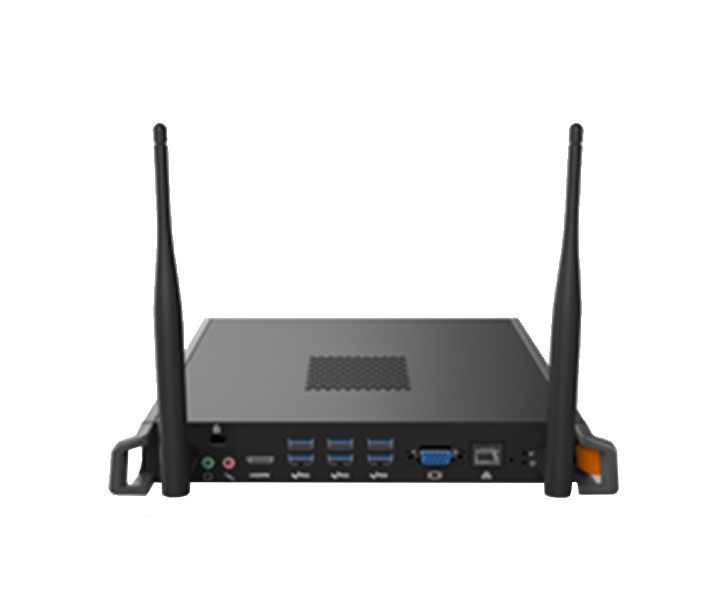
PC Module WIMODULE
This OPS PC module ensures better performance for our interactive screens and digital signage solutions applications.
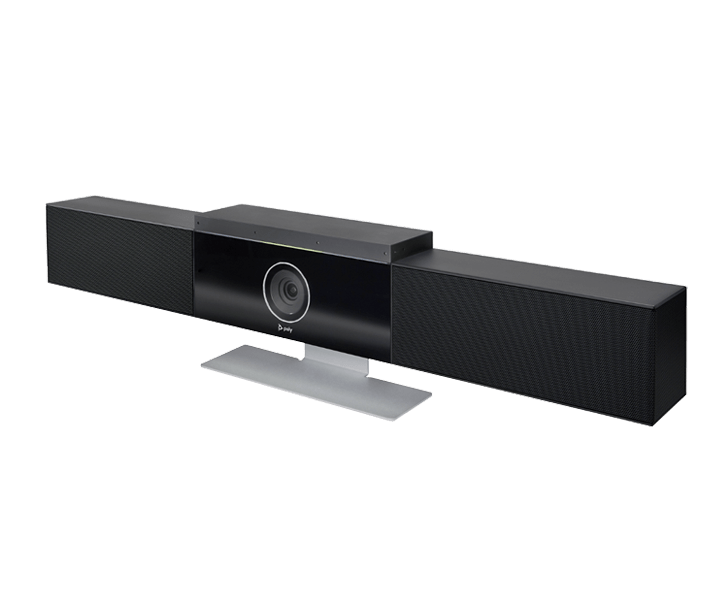
Poly Videoconferencing System
Thanks to a solid partnership with Poly, a leader in video and voice solutions, Wingsys presents the most modern solutions for video conferences. Poly's video conferencing system features exceptional stereo sound with high clarity and quality.
WMST Mobile support
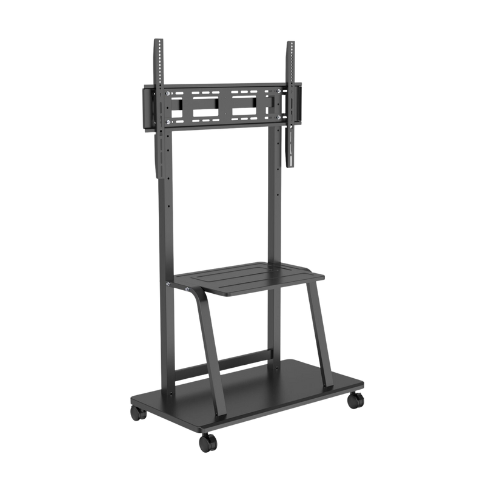
The WMST mobile support is perfect to fixate and comfortably carry Wingsys interactive screens and it is adjustable to multiple dimensions and inches. A perfect and easy to assemble solution to give more mobility to your display.


Do you want to know more about this solution?
FAQs about Online Classes at Home
What does it take to install Wingsys Virtual Classroom?
To install the Wingsys Virtual Classroom you just need to have access to the internet. This solution includes the following equipment:
- WIP Interactive Display;
- WIMODULE PC;
- Poly Studio Camera;
- Additional Ultra HD monitor, where the teacher views all participants online;
- Set of keyboard, wireless mouse and microphone for the teacher.
Just plug in the components and you're all set to start online classes in complete safety at home.
Is installing the Wingsys Virtual Classroom easy for teachers and students in distance learning?
The installation of Wingsys Virtual Classroom takes about 30 minutes the first time and in a very intuitive way.
For students in remote education, they only have to connect their computers with webcam, access the Internet and participate through the adopted platform. With Wingsys Virtual Classroom online classes at home are dynamic, fun and simple to follow.
Can Wingsys Virtual Classroom only be installed in schools?
Wingsys Virtual Classroom equipment can be used in any educational institution, but it is also possible to install this virtual classroom in the home of teachers who are teaching teleworking.
The equipment is simple to assemble in any space with internet access.
Can students see the teacher during online classes?
Yes. With this solution students can follow online classes at home with high quality of sound and image. Through the Poly Studio camera, included in the Wingsys Virtual Classroom solution, students are able to follow the movements of the teacher who is teaching the class and follow all the contents shared through the WIP interactive display.
Can the teacher see the students while teaching the subject?
Yes. Through the secondary screen that integrates the complete Wingsys Virtual Classroom solution, the teacher can see, in real time, the students who are at home and who have their webcam installed on the personal computer.
This way it is easier to keep classes controlled and interested in online classes.
Even from home, can students interact with the teacher?
Yes. The teacher can allow up to 4 student screens to be mirrored simultaneously. In addition, they can speak and listen to the teacher through the screen speakers and the Poly video conferencing system.
What can I do with the WIP display in online teaching?
The teacher can have the WIP interactive display in the classroom (or in his own home) and use it as a “giant tablet”. Through distance learning you can share all types of content with students: applications, manuals, websites or use it to write.
You can also prepare questions and tests with limited response time and even allow the sharing of responses and assignments. In this way, classes become more stimulating for students.
The Wingsys interactive WIP screen fits into the online teaching modality that constitutes a quality alternative for students unable to attend classes in person.
The integration of information and communication technologies in the teaching and learning processes contributes so that everyone has access to Education.